Gardix App User Guide#
Updated October 18, 2026
Gardix is an app for controlling the Gardix Connect car security system from your smartphone. Use it to arm your car, block the engine, start the engine remotely, see where your car is and get alarm notifications.
Installation#
Download the Gardix app from the App Store or Google Play. Scan the QR code with your phone camera: the link opens the right store automatically.



Registration#
To create an account:
-
Open the app and tap Register.
-
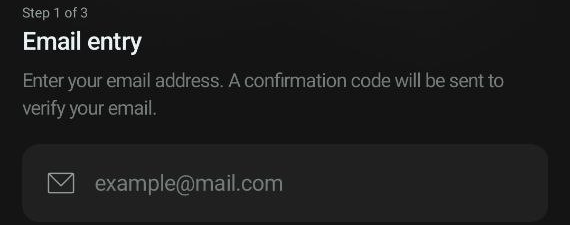
Enter your email address, accept the Terms of Use and the Privacy Policy, and tap Continue.
-
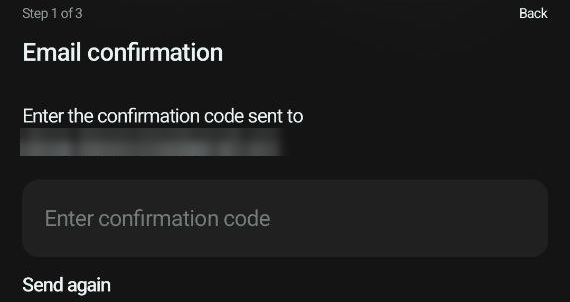
Enter the verification code from the email. If the email hasn't arrived, check your Spam folder or tap Send again below the code field: the app will send a new code.
-
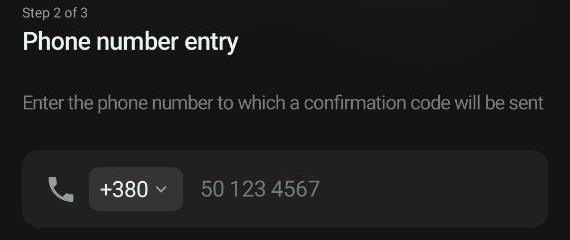
Enter your phone number.
-
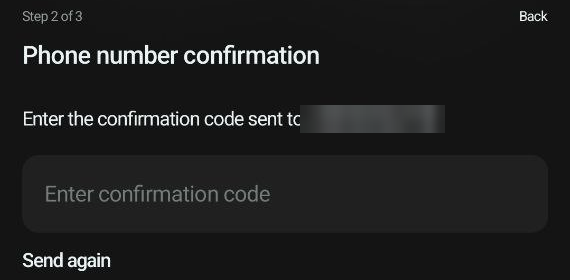
Enter the verification code from the text message. If it hasn't arrived, tap Send again below the code field: the app will send a new code.
-
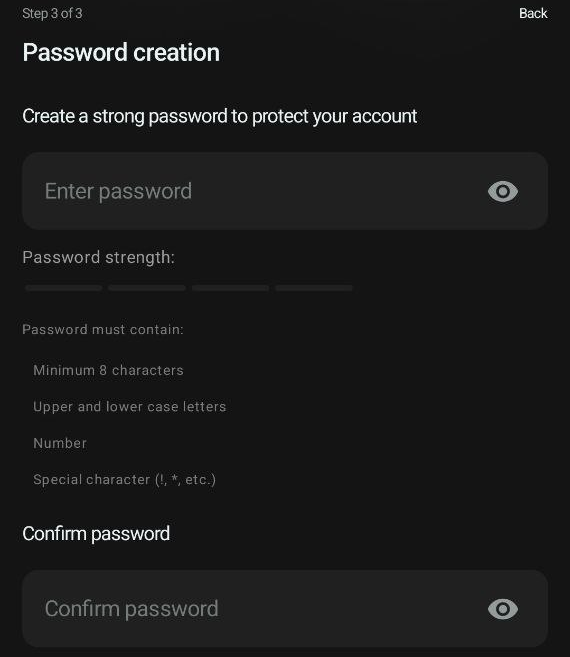
Create a password and enter it again. The password must contain:
- at least 8 characters;
- uppercase and lowercase letters;
- a digit;
- a special character.
Below the field, you can see how strong the password is and which requirements are already met.
-
Tap Create account.
After registration, the app shows Demo auto, a demo car. You can try all the features on it until you add your own car.
Login#
To log in:
-
Tap Login on the start screen.
-
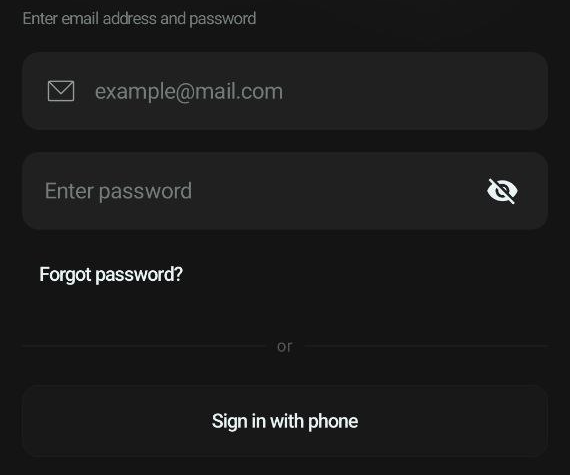
You can log in with your phone number or your email address. To switch between them, tap Sign in with email or Sign in with phone at the bottom of the screen.
-
Enter your phone number or email and your password, and tap Continue.
Access recovery#
If you've forgotten your password:
- On the login screen, tap Forgot password?
-
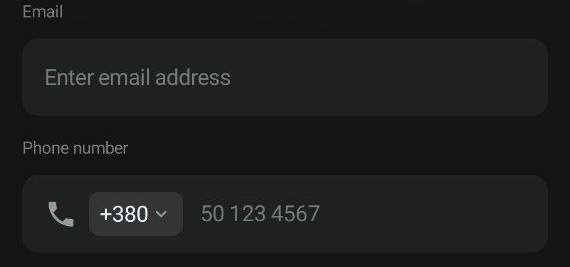
Enter the email and phone number linked to your account.
-
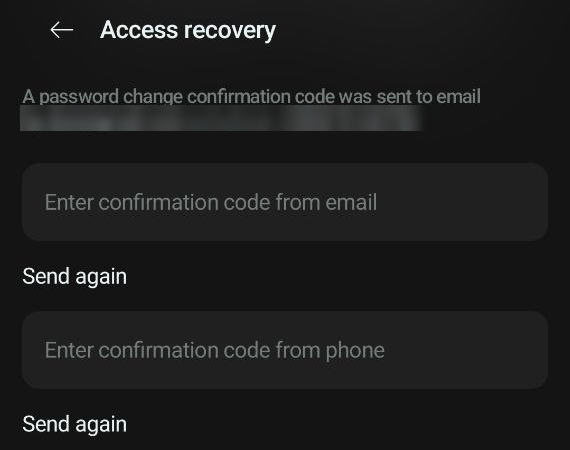
Enter the verification codes sent to your email and by text message. If a code hasn't arrived, tap Send again below its field.
-
Set a new password.
Adding a car#
You will need the Customer Card that comes with the security system. It shows the IMEI, and the GSM code is hidden under a scratch-off layer.
To add a car:
-
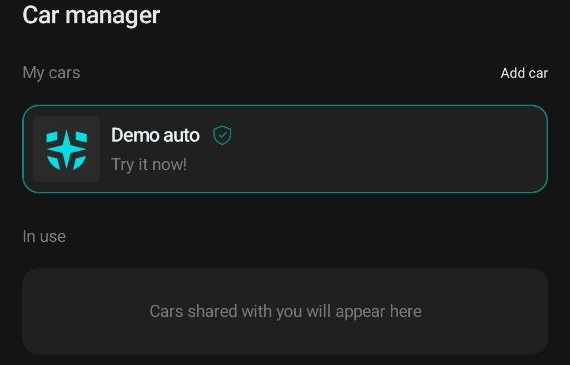
Tap Demo auto at the top of the main screen. The Car manager opens.

-
In the Car manager, tap Add car.
-
Enter the IMEI from the Customer Card, or tap the QR code icon
 in the field and scan it. To scan, the app asks for camera access: tap Grant permission.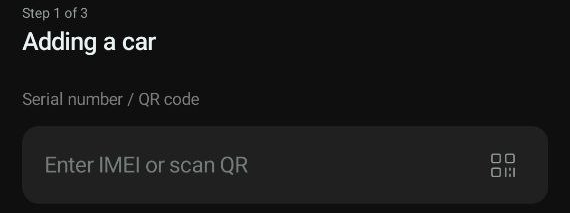
-
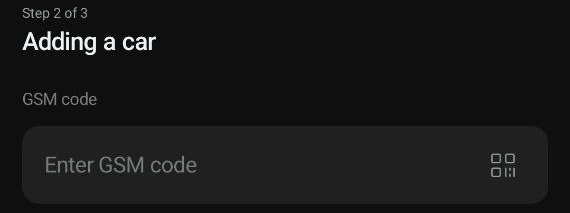
Scratch off the protective layer on the Customer Card and enter the GSM code.
-
Name the car (this name is shown in the app) and tap Add. You can always change the name in the car settings.
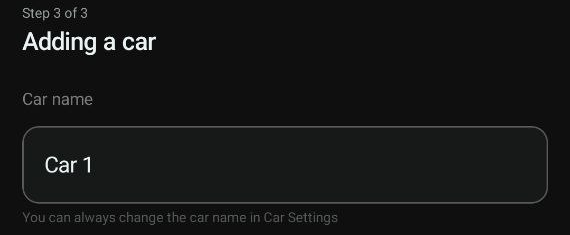
The added car replaces Demo auto in the Car manager and on the main screen.
History is deleted when a car is added again
If the car was previously added to this or another account, all its trip and event history is deleted when it is added again. This protects the previous owner's privacy.
Car manager#
The Car manager has two lists:
- My cars: cars you added with a Customer Card;
- In use: cars other users have shared with you. See Sharing access.
To switch to another car, open the Car manager and select it.
Main screen#
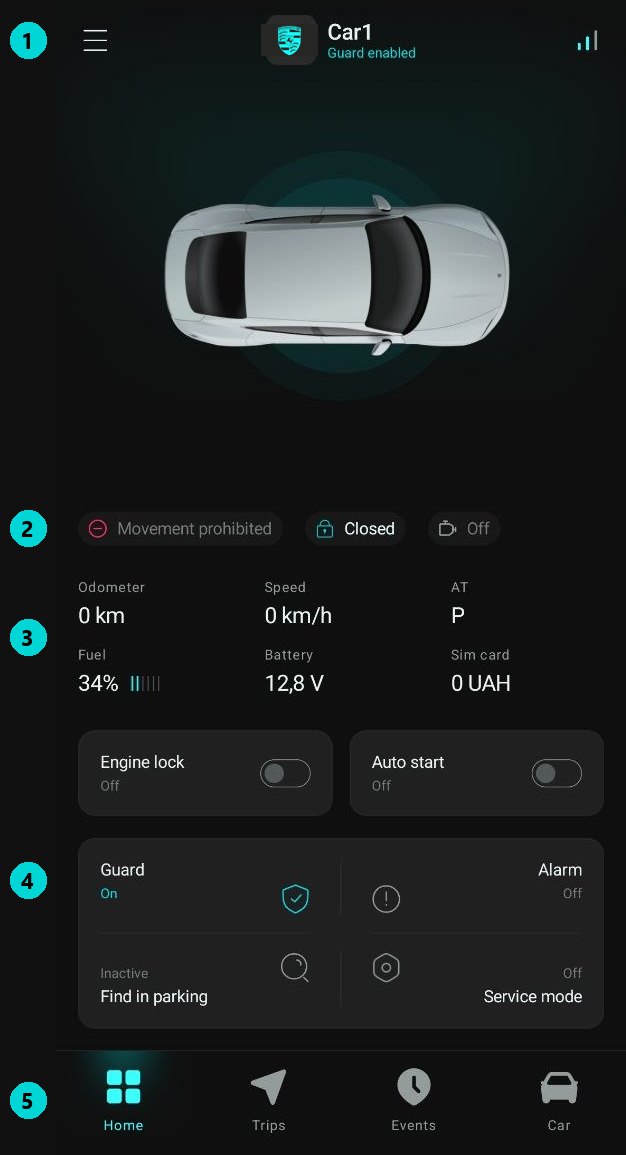
-
Header:

 Menu (three lines on the left) opens the app settings.
- Car name with the make's logo and the current security mode, for example "Guard enabled". Tap the name to open the Car manager, where you can switch to another car or add a new one.
 Signal level (on the right) is the mobile network signal strength of the security system in the car. If there is no connection, the icon is crossed out
  and a yellow Connection lost bar appears below the header. For what to do, see No connection to the car.
-
Car statuses: three chips below the car image showing driving permission, central locking and the engine.
Status Meaning 
The driver hasn't been authorized with an AirID tag or a PIN code entered with the car's standard buttons. If someone tries to drive off, the security system blocks the car 
The driver is authorized: the authorization tune has played in the car and you can drive off 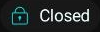

Central locking is closed / opened 

The engine is running / not running 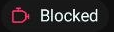
Engine lock is on: the car can't be driven, even by an authorized driver -
Car condition: readings the security system sends from the car:
- Odometer: the car's mileage;
- Speed: current speed;
- AT: automatic transmission selector position;
- Fuel: fuel level as a percentage and a gauge;
- Battery: the car battery voltage;
- Sim card: the balance of the security system's SIM card.
-
Control buttons: six buttons. When a function is on, the button's icon and label turn turquoise. The Engine lock and Auto start buttons show a switch instead of an icon: it only shows whether the function is on.
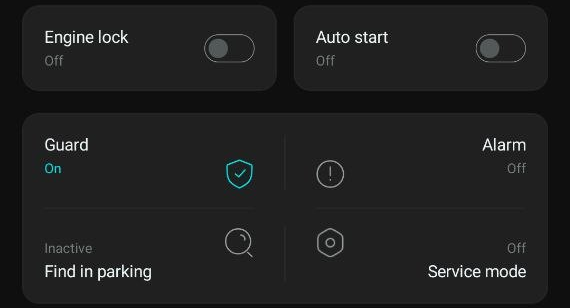
Button How to use What happens Engine lock Tap and hold until the countdown ends Forcibly prevents the car from being driven, even if the driver is authorized with an AirID tag or a PIN code. While the block is on, the switch on the button is in the "On" position. To turn the block off, tap and hold the button again. Auto start Tap and hold until the countdown ends Starts the engine remotely. While the engine is running, the switch on the button is in the "On" position. The engine stops after 20 minutes or when you hold the button again. Auto start isn't available on all cars.  Guard
GuardTap the button Arms or disarms the car  Alarm
AlarmTap the button Turns on the siren for 20 seconds, and a  Siren label appears below the car. Use it if you see suspicious activity near the car
 Find in parking
Tap the button The car gives sound and light signals so it's easier to find  Service mode
Tap and hold until the countdown ends Temporarily turns off all security functions. See How to turn on service mode -
Bottom menu: switches between sections of the app:

 Home: this screen;
 Trips: map and trip history, see Trips and map;
 Events: log of alarms and events, see Events;
 Car: codes, sharing, notifications and car settings, see The Car section.
Trips and map#
The Trips tab has two screens: Map and Trips. Switch between them with the button at the bottom  .
.
Map#
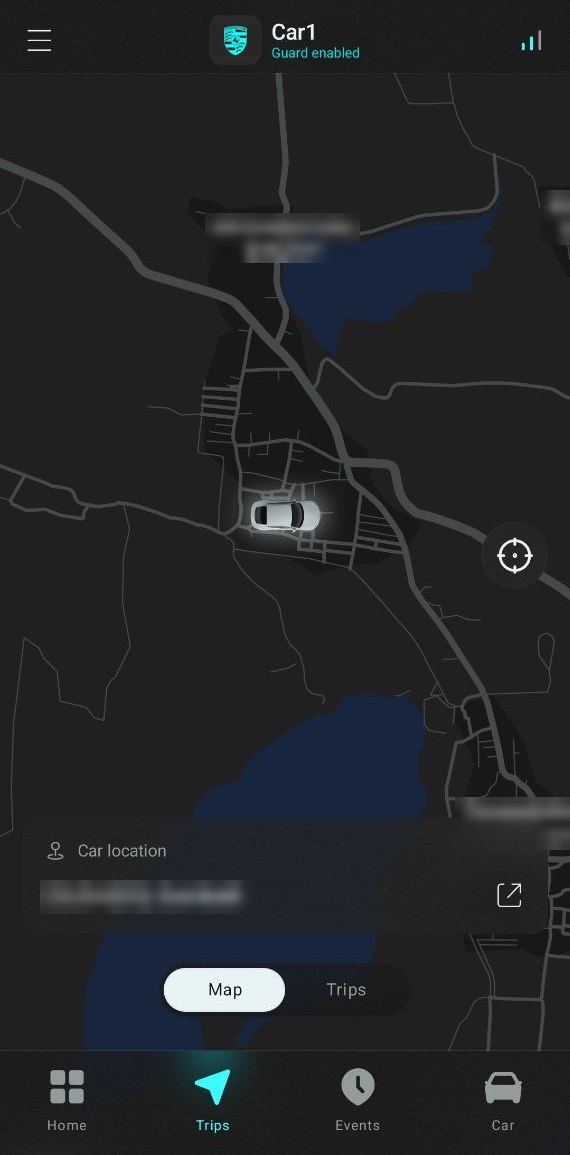
The map shows where the car is  and where you are
  . The address where the car is parked is shown below the map. The
  button on the right centers the map on the car again.
To get directions to the car, tap the address and choose a navigation or taxi app installed on your phone.
Trip history#
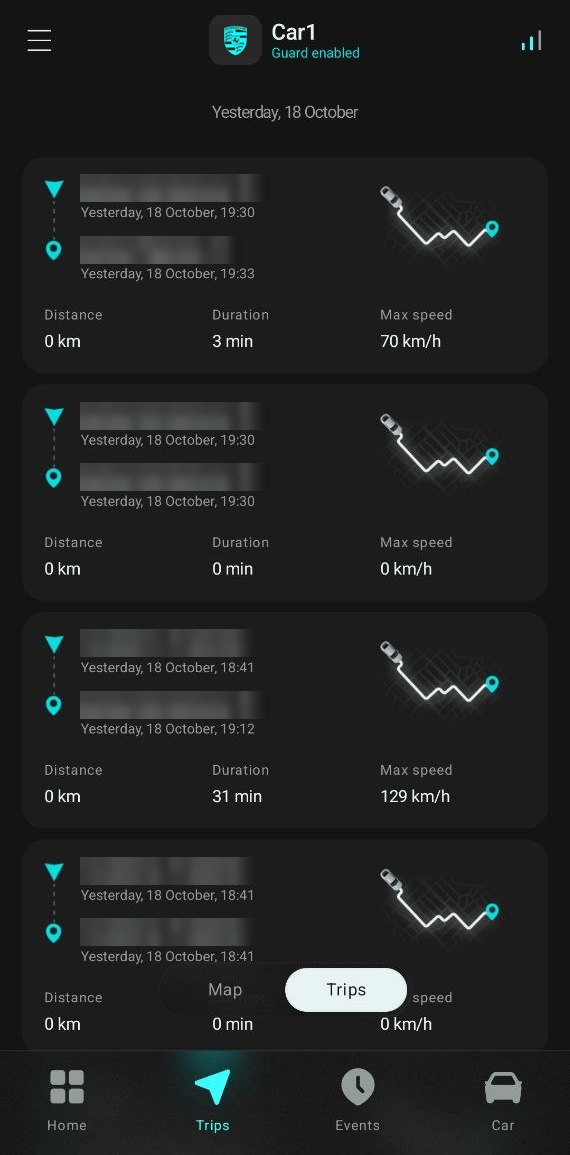
Trips are grouped by day, with the most recent at the top. For each trip, the app shows:
- start and end points: the address, or coordinates if the address couldn't be determined;
- start and end time;
- distance, duration and top speed.
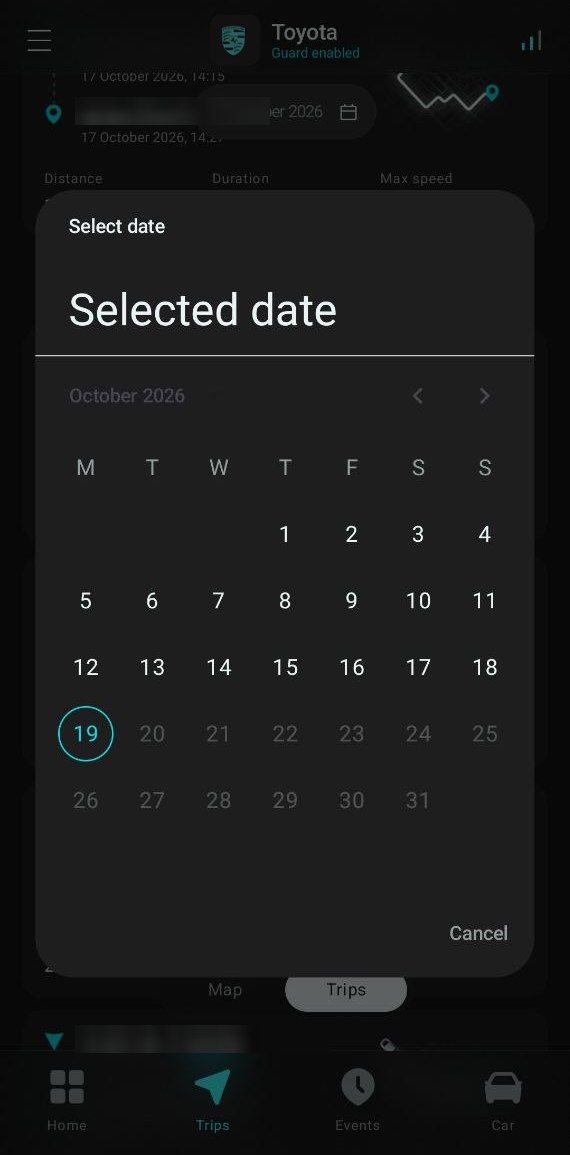
To jump to a specific day, tap the date button  at the top of the list and pick a date in the calendar.
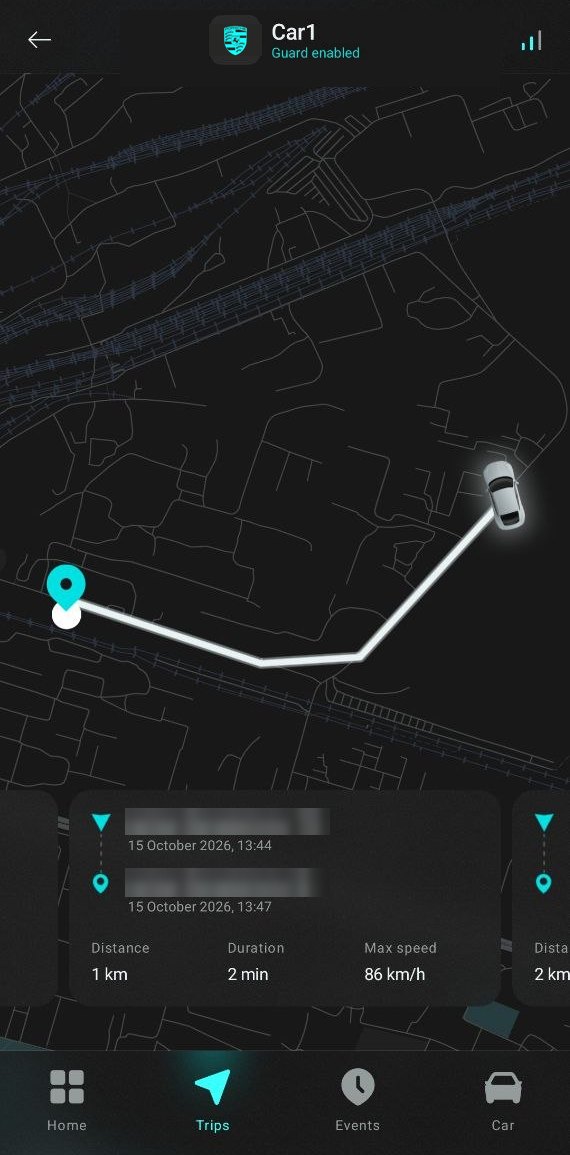
To see a trip's route on the map, tap the trip. Swipe the cards at the bottom of the screen to view the previous or next trips.
Events#
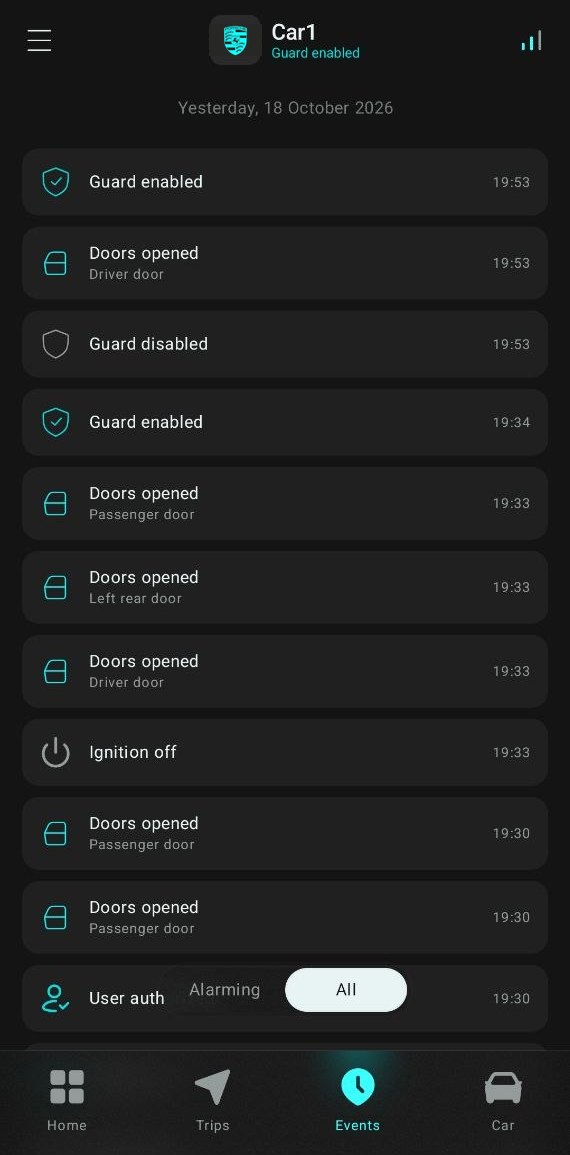
The Events tab keeps the history of everything the security system records. Events are grouped by day. The switch at the bottom  shows:
- Alarming: alarm events only;
- All: all events, including informational ones.
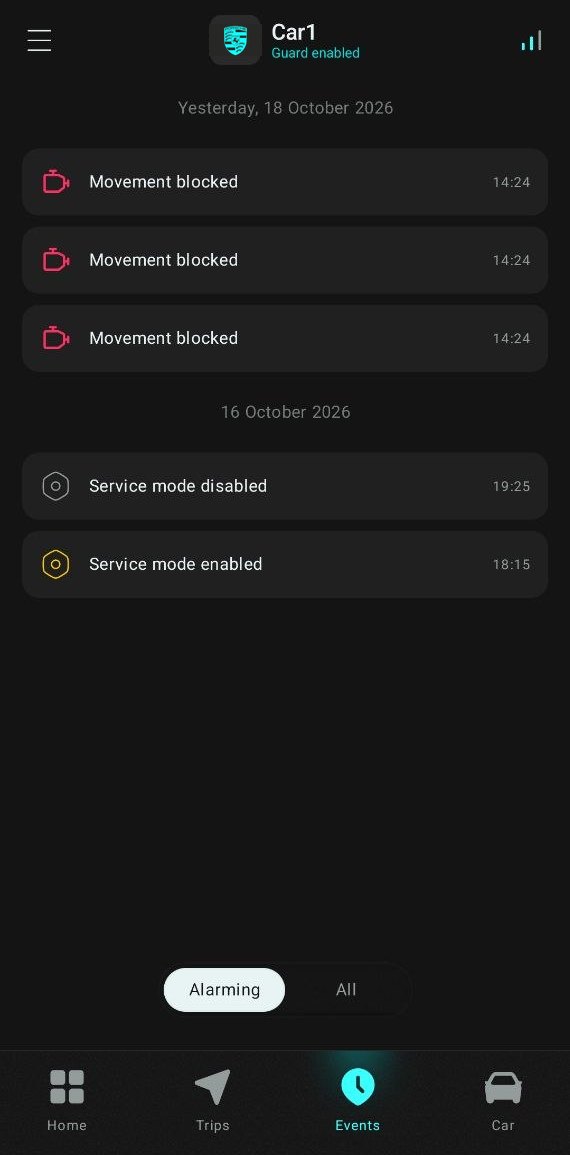
| Alarm events | Informational events |
|---|---|
 Door opening while guarded Door opening while guarded |
 Guard enabled / Guard enabled /  disabled disabled |
 Shock detector triggered Shock detector triggered |
 Ignition on / Ignition on /  off off |
 Tilt detector triggered Tilt detector triggered |
 Doors opened Doors opened |
 Movement blocked Movement blocked |
 User authorized User authorized |
 External power lost External power lost |
 Movement lock enabled / Movement lock enabled /  disabled disabled |
 Panic button pressed Panic button pressed |
 Find car Find car |
 Service mode enabled / Service mode enabled /  disabled disabled |
 Autostart enabled / Autostart enabled /  disabled disabled |
 Tag discharged Tag discharged |
 Gardix offline / Gardix online again Gardix offline / Gardix online again |
 Battery discharged Battery discharged |
Tap an event to see on the map where the car was at that moment. The time and coordinates of the event are shown below the map.
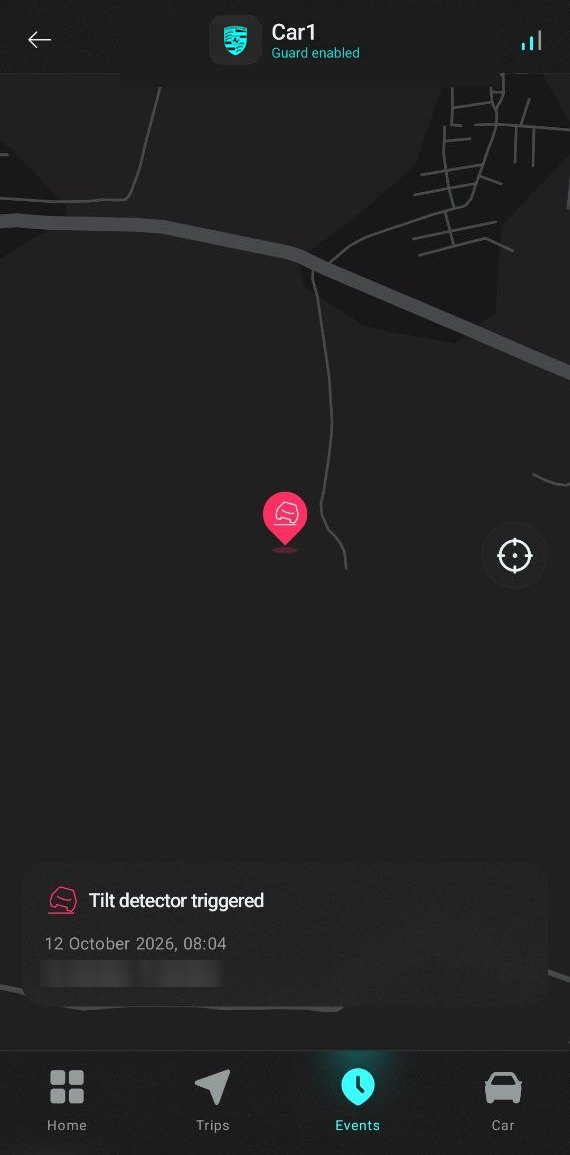
The available events depend on your security system's configuration.
The Car section#
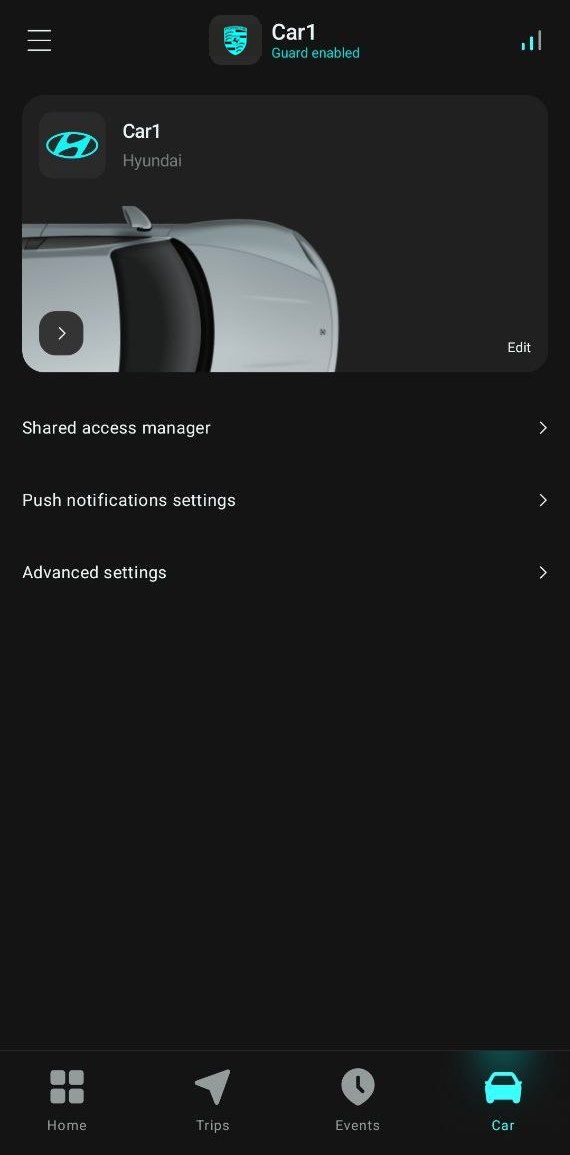
This section has everything about the selected car:
- Code card;
- Shared access manager;
- Push notifications settings;
- Advanced settings.
Car codes#
Tap the arrow  on the car card to see the codes:
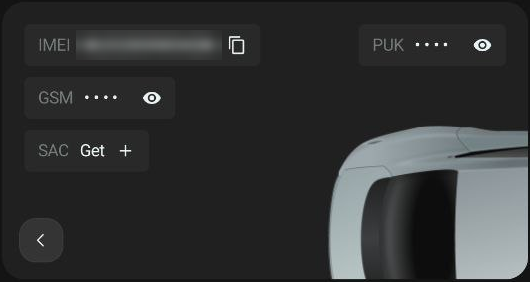
| Code | Purpose |
|---|---|
| IMEI | The security system's serial number. The  icon next to it copies it icon next to it copies it |
| GSM | The code for adding the car to the app. To see it, tap the eye icon |
| PUK | A master code for authorization if you don't have an AirID tag and don't remember your PIN code |
| SAC | A temporary access code for a service center. See below |
Don't share your GSM and PUK codes
These codes give full access to the security system. For a service station, use a temporary SAC code.
Service Access Code (SAC)#
A SAC (Service Access Code) gives a service technician or installer access to the security system settings without your GSM and PUK codes.
- On the car card, tap SAC → Get. The app generates a random code.
- Give the technician the IMEI and the SAC code.
- The code is valid for 12 hours and then expires automatically. To revoke access earlier, tap the trash icon
 next to the code.
Learn more: How to give a service station access without GSM and PUK codes.
Editing and deleting a car#
Tap Edit on the car card and select Rename or Delete.
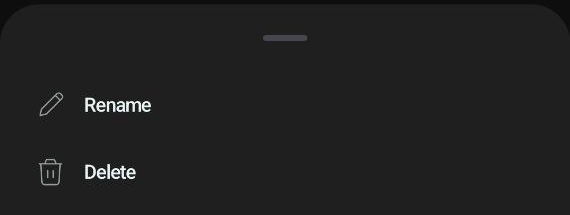
Deletion can't be undone
Deleting a car also deletes its entire history: trips, events and other data. It can't be restored.
Sharing access#
Share your car with family members or other drivers so they can control it from their own Gardix app.
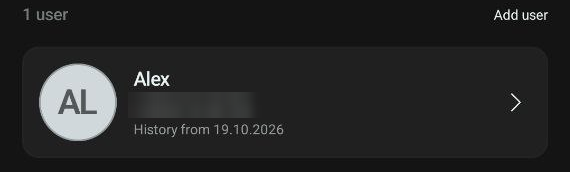
- Open Car → Shared access manager and tap Add user.
- Enter the user's phone number, or tap Enter email. Tap Continue.
- Enter the User name.
- In the Trip history access from date field, choose a date: the user will see trips starting from that date.
-
Choose the Access rights and tap Save.
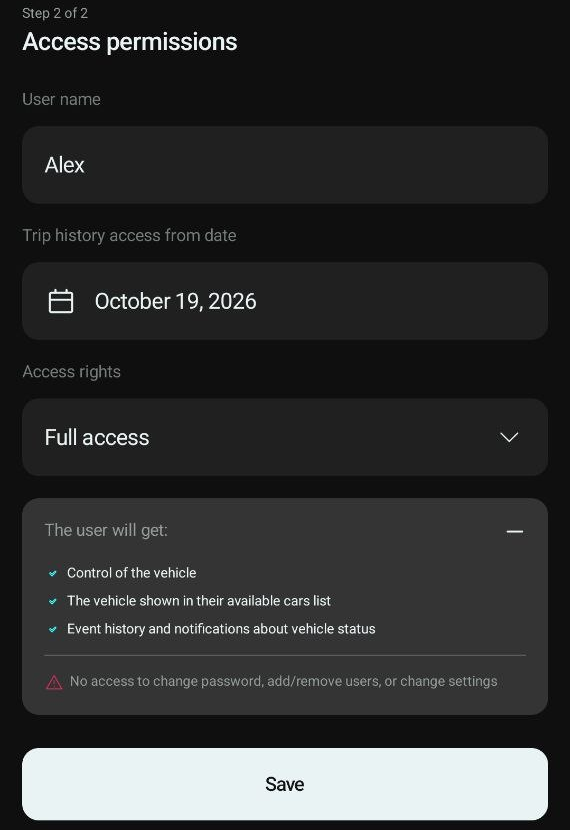
| Rights | What the user can do |
|---|---|
| Full access | Control the car, see it in the In use list, view the event history and get notifications |
| View only | See the car, view the event history and get notifications, but not control it |
Users with shared access can't change settings or add and remove other users.
The number of users with access is shown in the top right corner of the car card.
To change a user's rights or revoke access, tap the user in the list.
Push notifications#
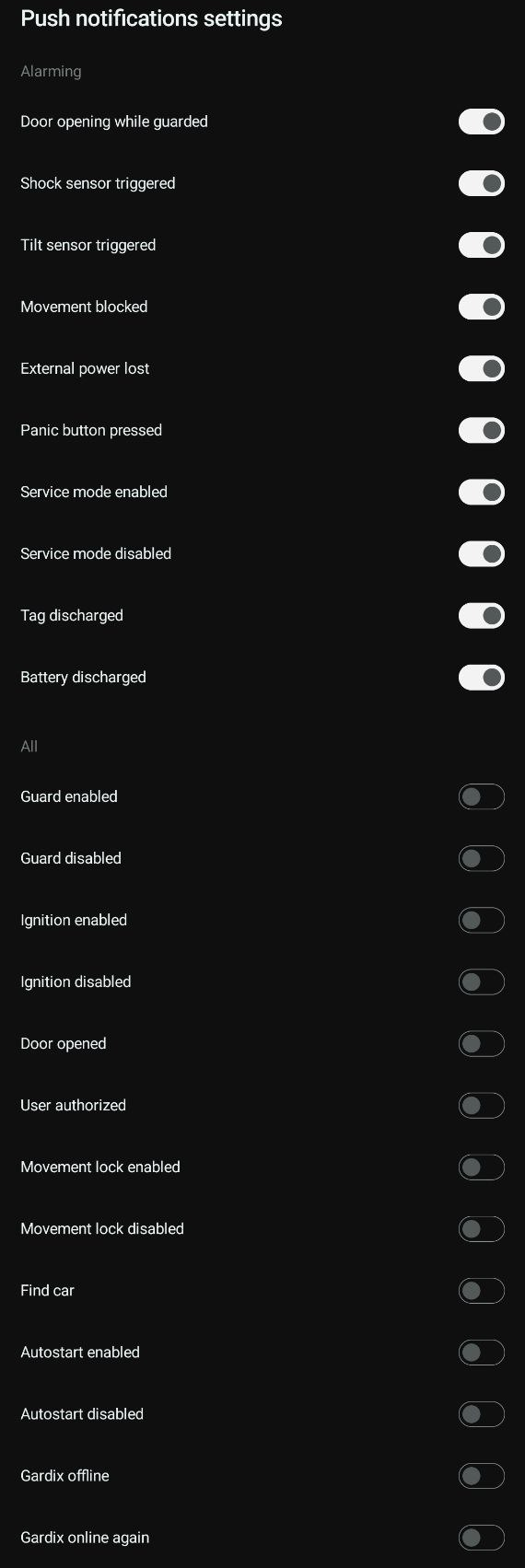
In Car → Push notifications settings, choose which events the app notifies you about. Each event has its own switch.
- Notifications about alarm events are on by default.
- Notifications about informational events are off by default. Turn on the ones you need, for example Ignition enabled, to know when someone starts the car.
These settings apply to one car. If you have several cars, set up notifications for each of them.
Advanced settings#
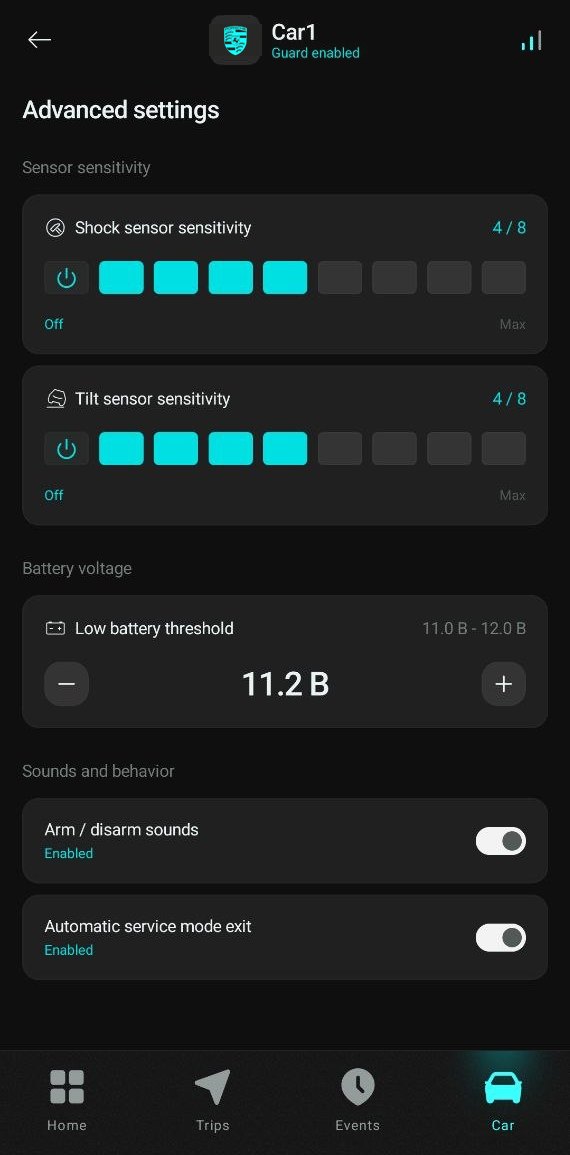
| Setting | Values | What it does |
|---|---|---|
 Shock sensor sensitivity Shock sensor sensitivity |
Off, 1–8 (default 4) | How strong an impact triggers the alarm. The higher the value, the more sensitive the sensor |
 Tilt sensor sensitivity Tilt sensor sensitivity |
Off, 1–8 (default 4) | How much the body has to tilt (for example, when the car is towed or jacked up) to trigger the alarm |
 Low battery threshold Low battery threshold |
11.0–12.0 V (default 11.8 V) | If the car battery voltage drops below the threshold, the app sends a Battery discharged notification. Lower the threshold if these notifications come too often, or raise it to find out about a discharge earlier |
| Arm / disarm sounds | Enabled / Disabled | One short siren chirp when arming, two when disarming |
| Automatic service mode exit | Enabled / Disabled | Service mode turns off by itself after the car has driven 10 km |
How to choose the sensitivity
If passing trucks or thunderstorms set off the alarm, lower the shock sensor sensitivity by 1–2 levels. If the sensor doesn't react to a light tap on the body, raise it.
App settings#
Tap in the top left corner of the main screen. A menu opens with these sections:
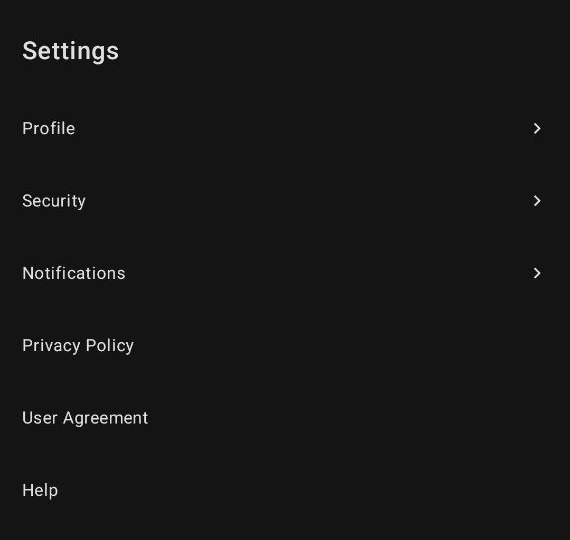
-
Profile. Change your name, phone number and email here. To sign out of your account, tap Log out at the bottom of the screen.
To delete your account, tap Delete in the top right corner.
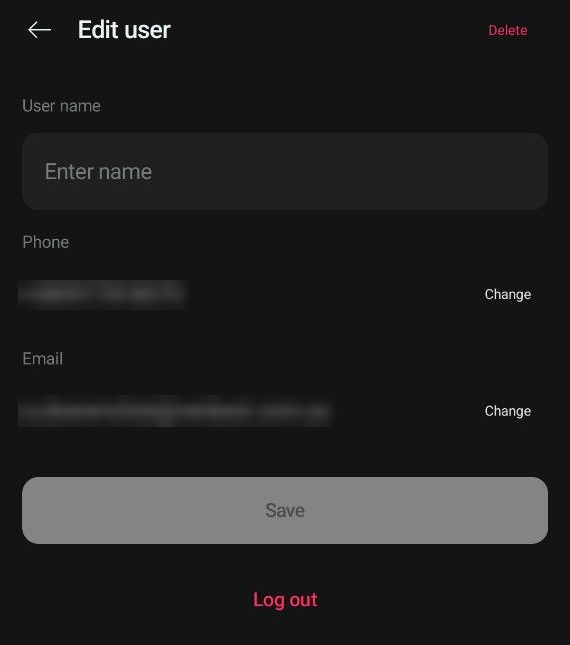
Deleting your account
Deleting your account also deletes all the cars you added and their history.
-
Security. Here you can change your password: tap Change password. Enter a new password and repeat it in the second field. The password must contain at least 8 characters, uppercase and lowercase letters, a digit and a special character.
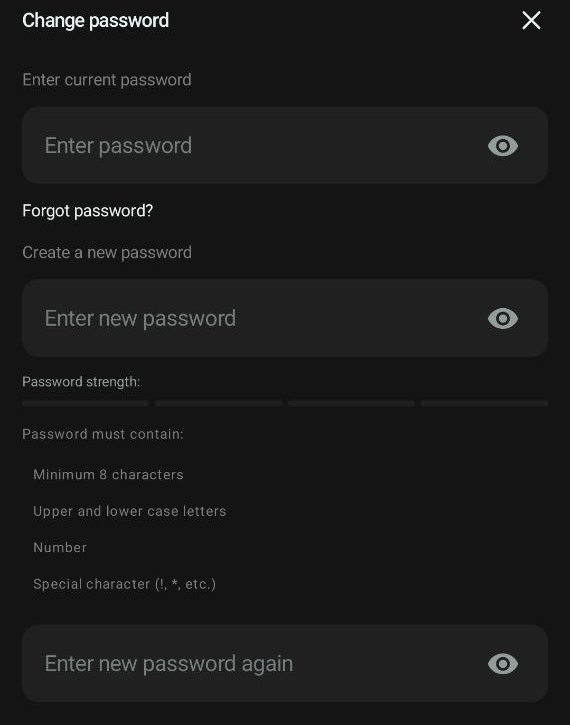
-
Notifications. To make sure you don't miss events from the security system, allow the app to send notifications. This menu shows which permissions are already granted: if a permission is missing, tap Go to settings below it.
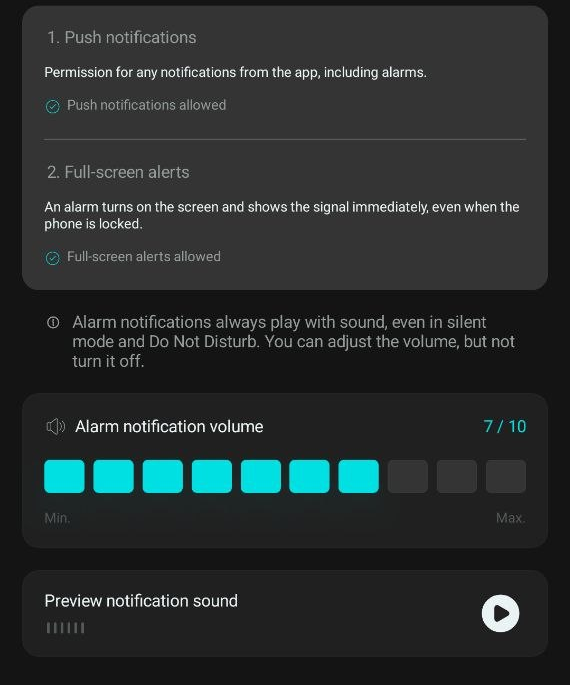
Android:
- Allow notifications.
- Allow full-screen alerts. An alarm will then turn on the screen and show the alert right away, even when the phone is locked. Without this permission, an alarm arrives as a regular notification.
iOS:
- Allow notifications.
- Allow critical alerts. An alarm will then sound even in silent mode and in Do Not Disturb mode.
Extra permissions on some phones
Some phone models (Samsung, Xiaomi and others) need extra permissions, for example turning off battery optimization for the Gardix app. Check your phone settings.
Alarm notification volume. You can also adjust the alarm volume here and hear what an alarm sounds like by tapping ▶ in the Preview notification sound row.
-
Help. If you need support, use this section.
Gestures#
How to refresh data#
The main screen shows the last known state of the car, as last reported by the security system. To get fresh data, pull the screen down and release it.