How to set up notifications so you never miss an alarm#
Updated October 14, 2026
The Gardix app reports an alarm in two ways: with a regular push notification and with a full-screen notification that turns on the screen even when the phone is locked. To make sure alarms always get through, check three things.
1. App permissions#
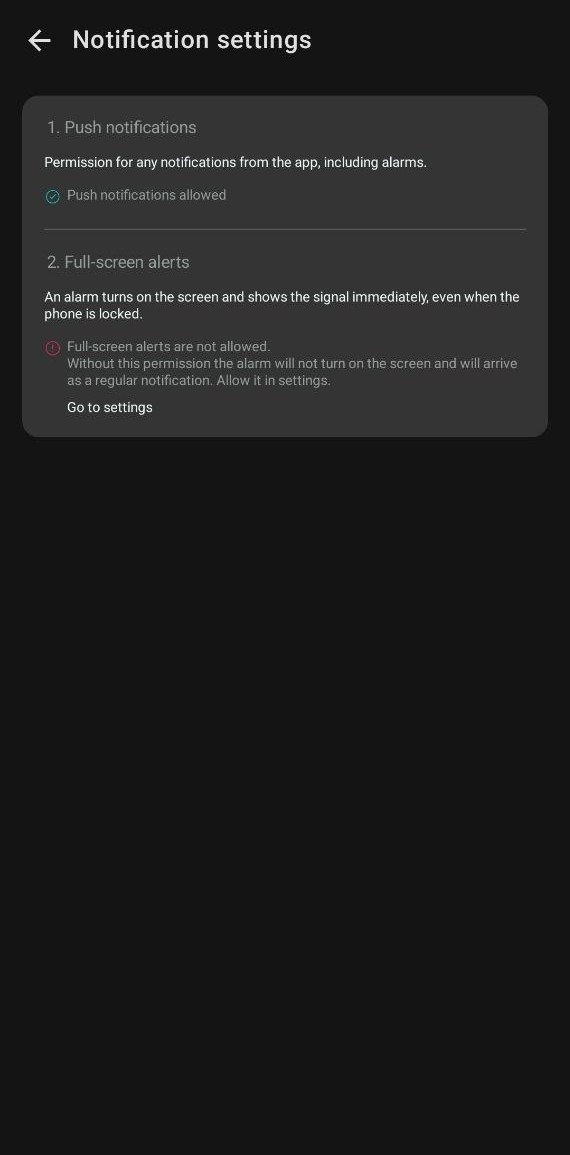
- Tap
 → Notifications.
 - Make sure Push notifications are allowed.
- If Full-screen alerts aren't allowed, tap Go to settings and allow full-screen notifications for Gardix in the phone settings.
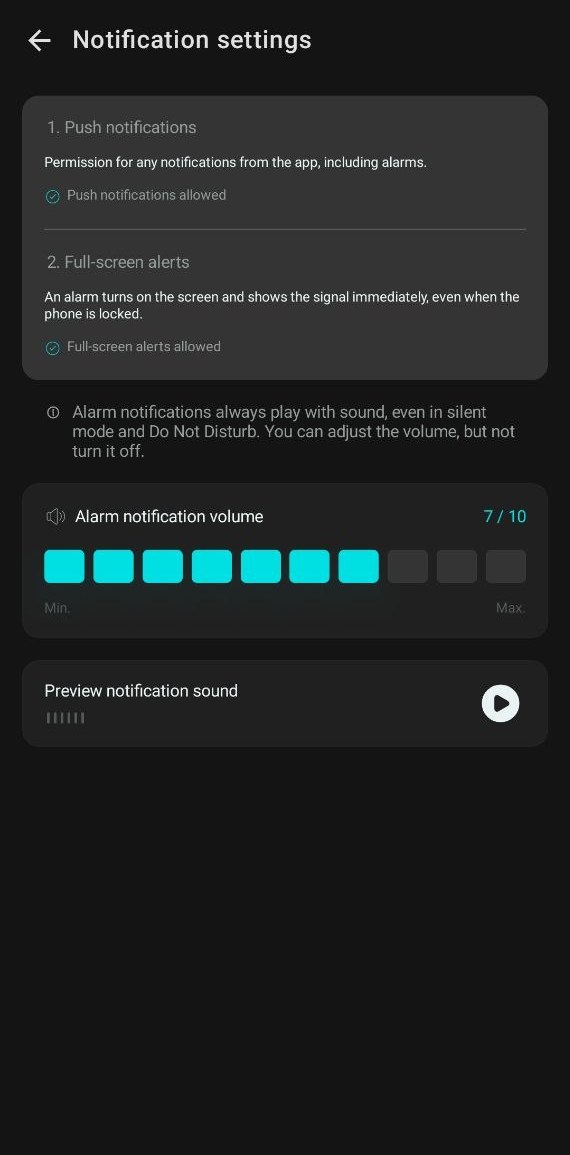
When both permissions are granted, the Alarm notification volume scale appears on the screen. Alarm notifications always sound, even in silent mode and Do Not Disturb: you can turn the volume down, but not off. Tap Preview notification sound to check the sound.
2. Events for each car#
- Open
 Car → Push notifications settings.
 - Make sure all alarm events are turned on. They are on by default.
- If you like, turn on informational events, for example Ignition enabled, to know when someone starts the car.
These settings are separate for each car.
3. Phone settings#
- Don't turn off Gardix notifications in your phone's system settings.
- Turn off battery saving or battery optimization for Gardix so the system doesn't restrict the app in the background.
- Don't log out of your account: after you log out, notifications stop arriving.