Configuration website#
Updated October 14, 2026 For installers
The security system is configured on the pro.gardix.systems/service website. Log in to your installer account or register.
Connecting to the unit#
There are two ways to connect: wireless and USB.
Wireless#
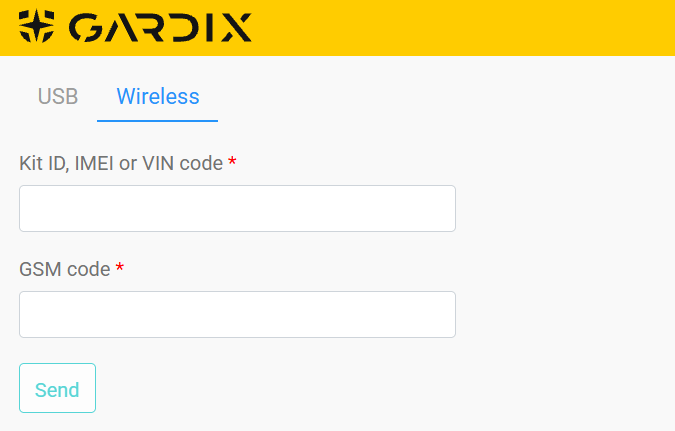
Connection over mobile internet. The unit must be powered and have a SIM card.
- Open the Wireless tab.
- In the Kit ID, IMEI or VIN code field, enter the IMEI from the box or the Customer Card.
- In the GSM code field, enter one of these codes:
- 1111 — a temporary code for a new unit. It works until the owner adds the car in the Gardix app;
- the GSM code from the Customer Card (under the scratch-off layer);
- a SAC code generated by the owner in the app. It's valid for 12 hours. See How to give a service station access without GSM and PUK codes.
- Click Send.
10 attempts
The number of failed code entry attempts is limited to ten. After that, access to the configuration website is blocked. To restore it, contact Gardix support.
USB#
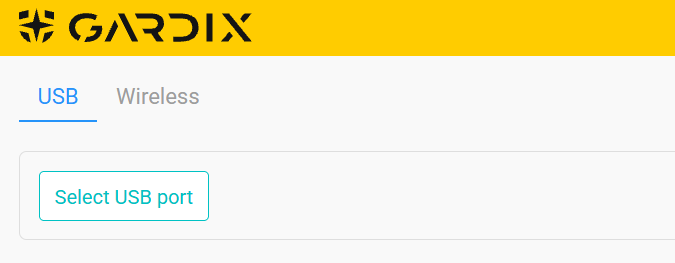
- Connect the unit to the computer with a USB Type-C cable.
- Open the USB tab and click Select USB port.
- Select the port with the matching label.
USB connection works only in browsers that support the Web Serial API: Google Chrome, Microsoft Edge and others.
Connection indicator#
There is an indicator next to the serial number at the top of the page:
 green — the connection to the unit is active;
 gray — there is no connection.
Make, model and configuration#
Select the Car brand, Car model and Configuration from the lists and save. The supported CAN functions, connection recommendations and autostart depend on this selection.
Turn off the ignition
For safety reasons, while the car's ignition is on, the website won't change the make, model and configuration, won't save settings and won't start a firmware update of the unit and the Bluetooth module. For tag and relay update requirements, see Firmware update.
If the make or model you need isn't on the list, write to support@gardix.systems.
Tabs#
| Tab | What it contains |
|---|---|
| Connection points | Recommended CAN1 and CAN2 connection points, additional connections and how autostart is implemented for the selected car |
| Opportunities | The Reading signals and Management commands over CAN1 and CAN2 supported for the selected car |
| Devices | Firmware versions of the unit and peripherals, signal level (RSSI), the Stitch button (firmware update), adding and removing AirID and AirRelay |
| Settings | All security system parameters, inputs and outputs. See Settings reference |
| Installation locations | Installation record: VIN, installer (service station), date, unit location, blocking (location, circuit), panic button, Service button |
| History | A timeline of settings changes and firmware updates. Click an entry to see the details |
| Signal monitor | Real-time installation check. See below |
| Autostart | Autostart settings for cars that support it. For the connection, see Autostart |
| Documentation | User manual, description of the included SIM card, technical description |
Devices#
During installation, update all devices to the latest firmware version. The Stitch button next to a device means an update is available for it. For how to update and the requirements for each device, see Firmware update.
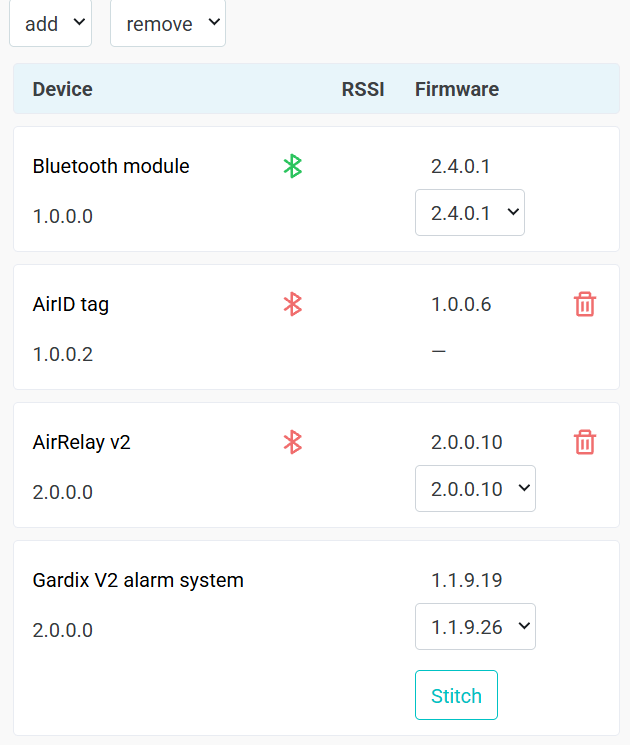
The Bluetooth icon next to the device name shows whether it's connected:
 green — the device is connected to the unit;
 red — the device isn't connected right now.
The  icon next to a device removes it, see AirID tags and AirRelay relays.
Settings#
The sync status is shown above the parameters. Settings are synchronized with the kit means the website and the unit have the same configuration.
Buttons at the bottom of the page:

| Button | What it does |
|---|---|
| Save settings | Writes the changes to the unit. Active only if the configuration on the screen differs from the one in the unit. Works only with the ignition off |
| Factory reset | Restores the factory settings |
| Reset "Service Button" | Resets the Service button assignment so you can assign another one. After reassignment, the PIN code returns to the factory default: two presses of the Service button |
| Reset analog inputs | Resets the analog input settings |
| Erase the black box | Deletes the event archive accumulated while the unit was offline |
At the bottom, there is a Comment field: describe what you changed. The comment is saved on the History tab.
Signal monitor#
The monitor shows what the unit sees and helps check the connections.
- Turn on the Testing mode switch. For 15 minutes, the unit sends messages for all triggers, then the mode turns off by itself. Turn it on again if needed.
- Check the car's components and watch how the images change.
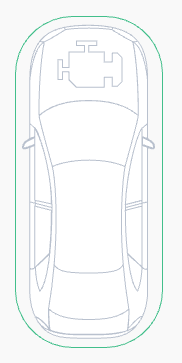
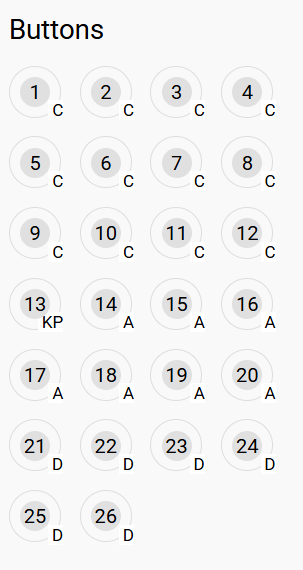
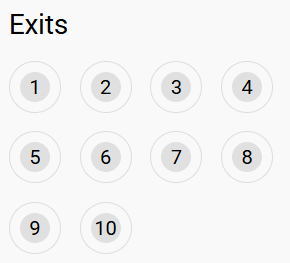
| Block | What it shows |
|---|---|
| Car image | Arming, doors, hood, trunk, engine, ignition, blocking, brake pedal, hazard lights |
| Buttons | Presses of the standard buttons. Labels: C — the button is read from the CAN bus, A — from an analog input (resistive), D — from a digital input, KP — assigned as the Service button |
| Exits | Which of outputs 1–10 are currently active |
| Telemetry and log | Current parameter values and the log of messages from the unit |
The tab also has command buttons for testing: Protection (arming), Engine lock, Service mode, Autostart, Sirena (siren), Parking search and Reload the block (restart the unit).
Autostart#
The tab is available if autostart is supported for the selected car. Click Teach…: the website shows instructions for the electrician for the specific car. Follow the steps on the screen. Before you start, the status The block is ready for training. must appear.
To let the owner start the engine from the app, turn on the Autorun permission parameter in the settings.